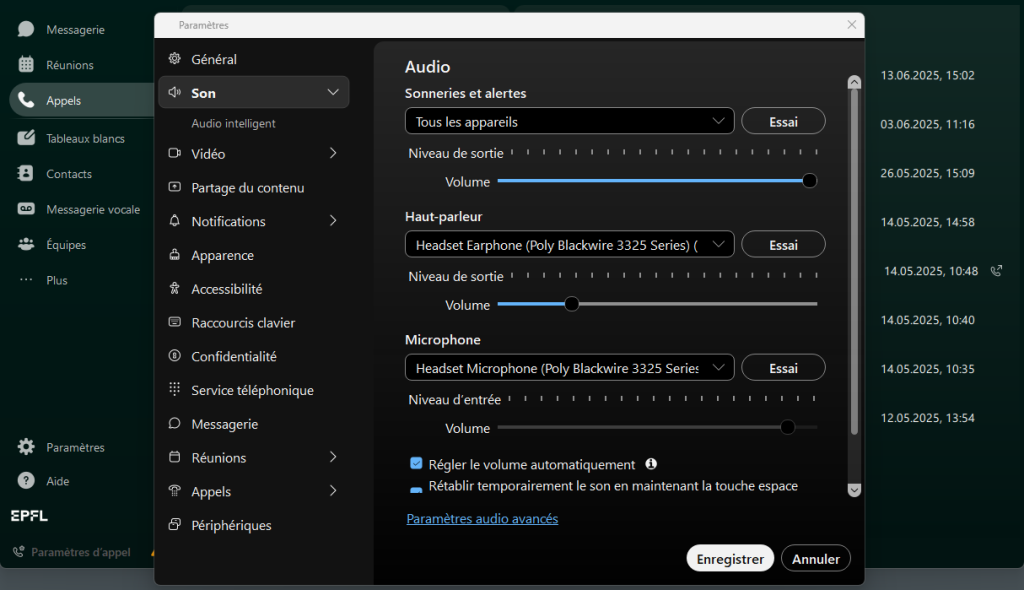
Select Settings from your profile photo or from the cogwheel.
Select the Audio tab.
Use the drop-down menu options to select your preferred devices: Ringtones/Alerts; Loudspeaker; Microphone
When a new microphone or speaker tab is connected, select Switch to new microphone or speaker.
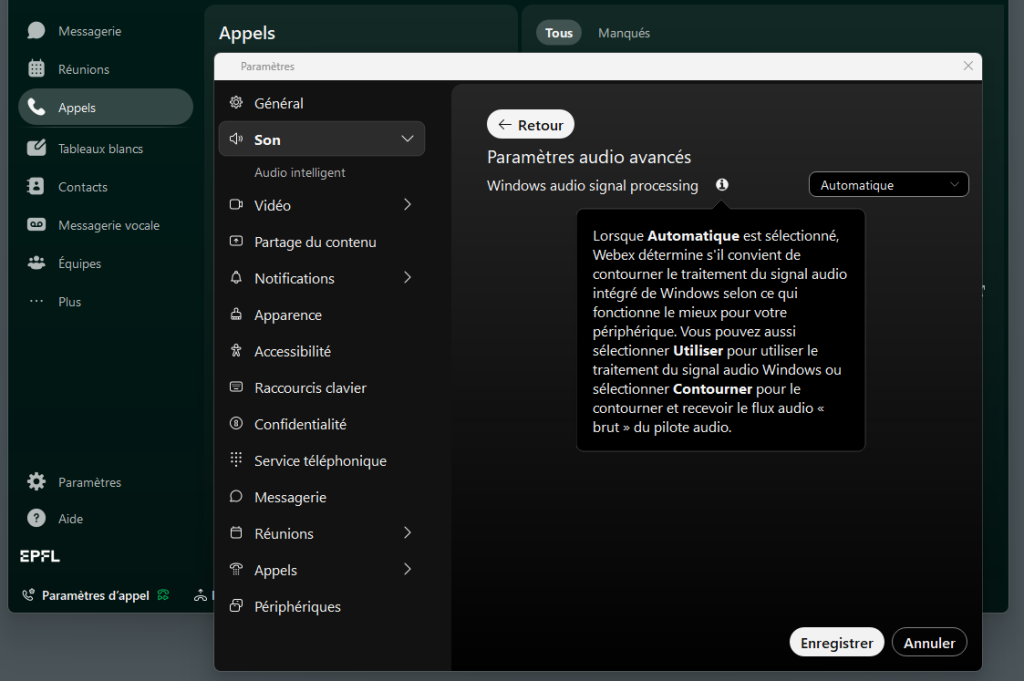
In the Advanced menu, you can set the noise reduction.
If the selected device is disconnected, the audio will switch to the next device in the selected order. Note: if the ‘All devices’ option is selected in the basic audio settings, this option is disabled for Ringtones/Alerts
Check the sound settings on your PC.
On Windows: Select Settings > System > Sound, then adjust the volume of the device selected for audio output.
On Mac OS: Select Apple menu > System Settings, then click Sound in the sidebar.