
Connection
No, you do not need a VPN connection to use Webex anywhere.
The Webex softphone works also with the VPN except with the SAP VPN for security reasons.
For the person you’re talking to, it’s as if you didn’t answer their call, so they’ll be able to leave you a message on your Voicemail.
Update and Settings
- The Cisco Webex client automatically proposes the latest updates to be installed to users when the Soft-phone is restarted.
- To search the latest updates, click on Help, and click on ‘Search for Updates’.
- If the automatic update or the search for updates does not work, you must carry out the installation manually by following the download procedures described on the Webex install page.
For models from the M series onward (2022 and later), select Apple Silicon chips
If you’re unsure, click the Apple icon in the top-left corner of the screen and select “About.” A window will open showing your model.
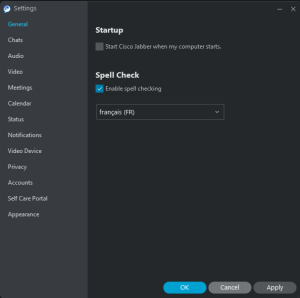
When you have Jabber and Webex installed at same time, the first application that start take the telephony. You can switch calls in between as you want, but if you use only Webex we recommend you remove Jabber from startup sequence.
Option is on Settings -> General
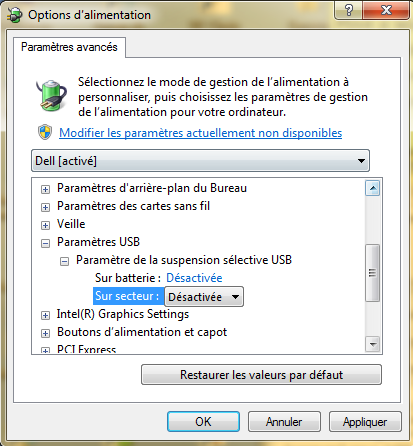
- One solution is to disable standby mode for USB peripherals.
- Accessing Windows power management: go to the Control Panel, then click on ‘Hardware and Sound’ and again on ‘Power Options’, then ‘Modify the current mode settings’ (Select button).
- Then click on ‘Modify advanced power settings’.
- Go to ‘USB Settings’, then ‘USB Selective Suspend Settings’ and select ‘Disabled’, “Battery” and ‘Mains’.
- Sometimes an app may take control of the headphones. To prevent this, go to Settings -> Sound then select your headphones to disable exclusive control of the device.

Call and diversion
If you are not interested on this feature, please contact the Service Desk : 1234@epfl.ch.
This must be done in two steps:
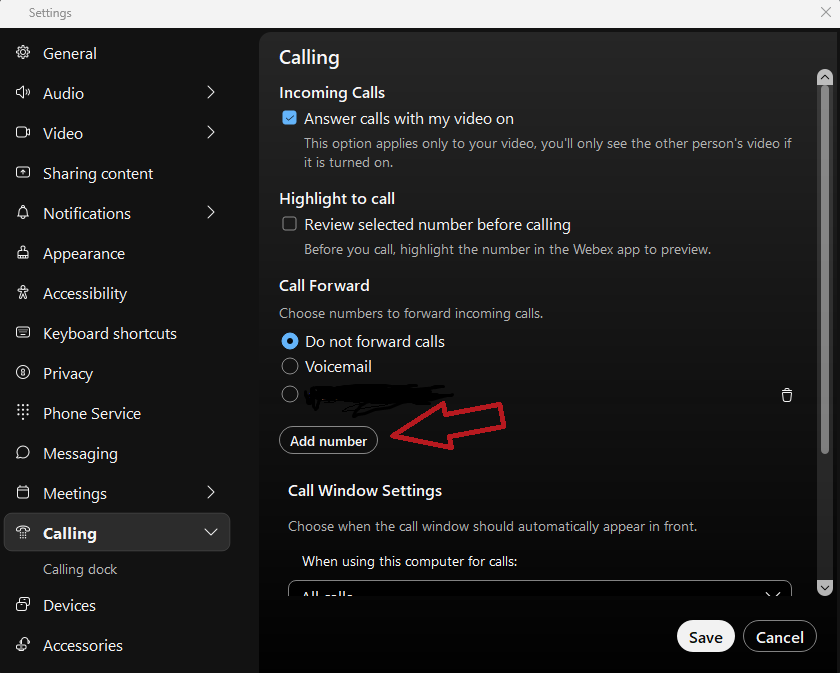
Go to ‘Settings -> Calls -> Call Forwarding’, then enter the forwarding number and save your selection.
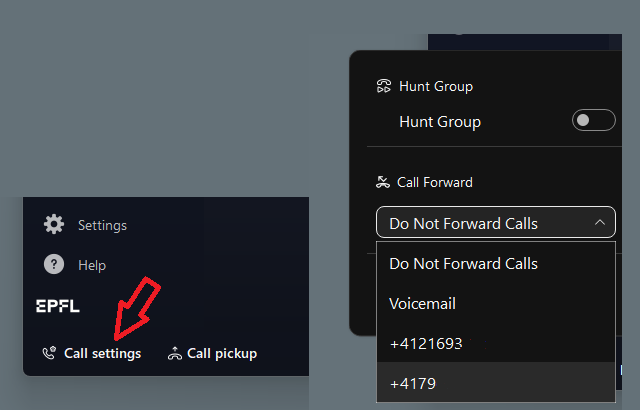
At the bottom left of the main ‘Call Settings’ window, you can select the number to forward calls to.
The best thing to do is to install Webex on your mobile phone.
You can call the 1234 service desk if you want a diversion instead.
To register a personal contact or a contact external to EPFL, i.e. not available in the directory, you must create a contact in Outlook and fill in the following fields:
- Instant messaging address
- Telephone number in E164 format (+41…)
- Full name
Then search for the contact and add it to the Webex softphone.
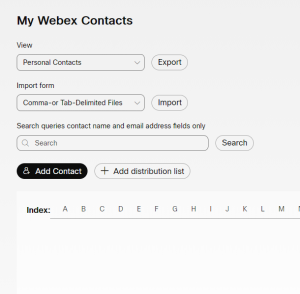
You can also import or export your contacts in CSV format via the epfl.webex.com portal.
Once logged in, click on your profile picture and select ‘More Features -> Contacts’ option to import or export your contacts .
Presence status
You can set your availability status in Outlook under Privacy settings.
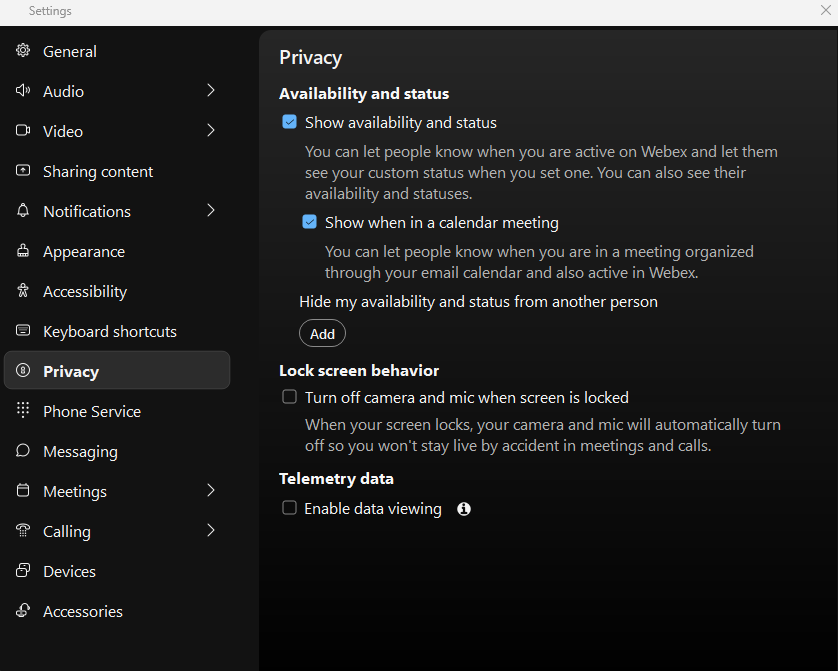
You can also change your presence status to Do Not Disturb; This option is sync with M365.
Call from Teams
On MS-Teams app, go to Applications on the left bar, search for Cisco Call, then add the normal application (not government).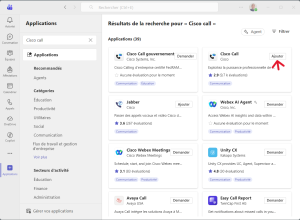
Follow instructions to finish the installation.
Once the application is installed, you can pin it to your left-hand menu for easier access.
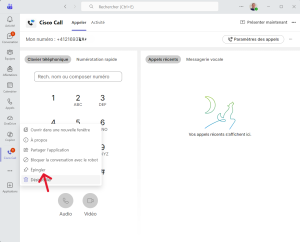
On the voicemail tab, the small icon on the right allows you to call your voicemail.

Please note that this option is not available at this time.
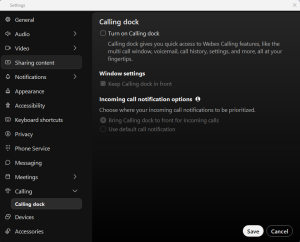
A Calling Dock option is available to minimise Webex windows when using MS Teams.
This option is not yet complete and is only available in Windows environment, which is why we advise against using it.
Reset
The following procedure allows you to delete the local call history on your mobile, the history of all your chat communications and your connection identifiers.
For reasons of confidentiality, this procedure should be used by employees each time they change machines and if you encounter problems displaying your Webex history (e.g. empty history, doubled call history, etc).
- Profile picture >> Logout.
- Press Settings. Scroll down the list and press Factory Reset.
- Once the phone has been restarted, the main screen will be displayed. If the phone was initially integrated using its MAC address, it will reconnect to Webex Calling.
- Reconnect with ‘your username’@epfl.ch. For future connections, use only ‘your username’.
Headset and webcams
A standard request for a headset and/or webcam is available on the support.epfl.ch website, headset and webcam request.
Only one model of accessory (headset and webcam) is offered when a softphone is activated.
If you require a different headset or webcam model than those proposed, please contact the person in charge of your unit.
Other settings
The Webex app is based on the language of the regional settings of the machine’s operating system. You therefore need to adapt the language of your choice in the regional settings and restart the machine so that Webex works with the desired language.